
Related Articles


Technology has completely changed the way we drive. A few years ago, using navigation or answering calls while driving often meant holding a phone or mounting it on the dashboard. Today, Wireless Android Auto makes the entire experience much easier by connecting your smartphone to your car without the need for a USB cable. After using it myself, I can honestly say it makes every drive more convenient and enjoyable.
One of the biggest advantages of Wireless Android Auto is that your phone automatically connects to your car as soon as you start the engine. Within a few seconds, you can access Google Maps, Spotify, phone calls, text messages, and Google Assistant directly from your vehicle’s infotainment screen. There is no need to plug in your phone every time you drive.
In this article, I will explain how Wireless Android Auto works, how to set it up, common problems you may face, and a few tips that can help you get the best experience.
What Is Wireless Android Auto?
Wireless Android Auto is a feature that allows compatible Android smartphones to connect to a compatible car’s infotainment system without using a USB cable.
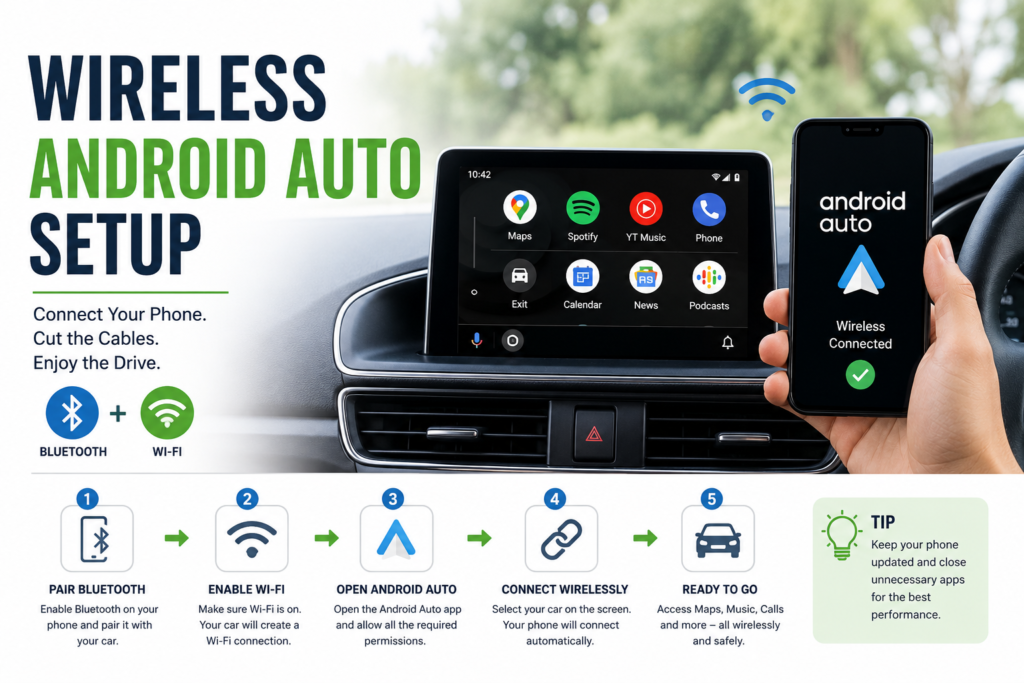
Instead of relying on a wired connection, it uses Bluetooth for the initial pairing and WiFi for high speed communication.
Once connected, your phone’s apps are displayed on the vehicle’s screen in a simple and driver friendly layout.
This allows you to use navigation, music, phone calls, and messaging while keeping your hands on the steering wheel.
Benefits of Wireless Android Auto
After switching from the wired version, I immediately noticed how much more convenient it was.
You no longer need to search for a charging cable every time you enter the car.
The phone automatically connects within seconds.
The dashboard stays cleaner without cables.
Navigation updates instantly.
Music streaming becomes effortless.
Voice commands work smoothly through Google Assistant.
Overall, the driving experience feels much more modern and comfortable.
Requirements Before Setup
Before trying to connect Wireless Android Auto, make sure your vehicle and smartphone meet the necessary requirements.
Your car must support Wireless Android Auto.
Your Android phone should run a recent version of Android.
Bluetooth and WiFi must both be enabled.
The Android Auto application should be installed and updated if required.
Some older vehicles may require a software update before wireless connectivity becomes available.
Checking compatibility first saves time during setup.
Step One Connect Bluetooth
The first step is pairing your smartphone with the vehicle through Bluetooth.
Turn on Bluetooth on your phone.
Open your car’s Bluetooth settings.
Search for available devices.
Select your vehicle from the list.
Confirm the pairing code displayed on both screens.
Once paired successfully, the initial communication between the phone and vehicle is established.
Step Two Enable WiFi
Many people are surprised to learn that Wireless Android Auto uses WiFi rather than Bluetooth for most of the data transfer.
Bluetooth simply starts the connection.
After pairing, the system automatically switches to a direct WiFi connection.
This provides enough speed for navigation, music streaming, voice commands, and app communication.
Make sure WiFi remains enabled on your phone.
Step Three Open Android Auto
Open the Android Auto settings on your smartphone.
Accept any requested permissions.
Allow access to contacts.
Phone calls.
Messages.
Location.
Notifications.
These permissions allow Android Auto to function properly while driving.
Without the necessary permissions, some features may not work correctly.
Step Four Connect to Your Vehicle
Start your vehicle.
Wait a few seconds.
If your car supports Wireless Android Auto, the infotainment screen should detect your phone automatically.
Select Android Auto on the display if prompted.
Within moments, the familiar Android Auto interface should appear.
Future connections usually happen automatically whenever you start the vehicle.
Understanding the Android Auto Interface
The layout is designed to reduce driver distraction.
Large icons make apps easy to access.
Google Maps usually appears first for navigation.
Music applications such as Spotify or YouTube Music are available.
Phone calls and messages can be managed using voice commands.
Google Assistant is always available by voice or steering wheel controls.
Everything is designed to minimize the time your eyes leave the road.
Using Google Maps
Navigation is one of the features I use most often.
Google Maps provides real time traffic information, estimated arrival times, alternate routes, and voice guided directions.
Searching for destinations becomes easy through voice commands.
You can simply say where you want to go, and navigation begins almost immediately.
Listening to Music
Wireless Android Auto supports many popular music applications.
Spotify.
YouTube Music.
Amazon Music.
Audible.
Podcast applications.
Instead of handling your phone, you can control playback directly from the infotainment screen or through voice commands.
This makes driving much safer.
Making Phone Calls
Phone calls become much more convenient.
You can answer incoming calls using the steering wheel controls or touchscreen.
Google Assistant also allows voice dialing.
The vehicle’s built in microphone usually provides much better call quality than holding the phone.
Sending Messages
Android Auto allows safe message handling while driving.
Incoming messages can be read aloud by Google Assistant.
You can reply using voice commands without touching your phone.
This helps reduce distractions while keeping you connected.
Google Assistant Features
Google Assistant is one of the biggest strengths of Android Auto.
It can start navigation.
Play music.
Call contacts.
Send messages.
Read notifications.
Answer general questions.
Control compatible smart home devices.
Voice commands make driving much safer than manually operating a phone.
Common Connection Problems
Sometimes Wireless Android Auto may not connect immediately.
Common causes include outdated phone software.
Old infotainment software.
Bluetooth pairing issues.
Disabled WiFi.
Low phone battery.
Temporary software glitches.
Most connection problems can be solved by restarting the phone or reconnecting Bluetooth.
Tips for Better Performance
Keeping everything updated provides the best experience.
Update your Android operating system.
Install the latest Android Auto version.
Keep your vehicle software updated whenever available.
Restart your phone occasionally.
Avoid running unnecessary background applications.
Maintain sufficient battery charge before long trips.
These simple habits improve connection reliability.
Does Wireless Android Auto Drain Battery?
Since WiFi remains active during use, Wireless Android Auto usually consumes more battery than the wired version.
For long journeys, placing your phone on a wireless charging pad or using a charging cable may still be helpful.
Many modern vehicles include wireless charging specifically for this purpose.
Is Wireless Android Auto Safe?
In my opinion, Wireless Android Auto is much safer than using a smartphone directly.
The simplified interface reduces distractions.
Voice commands allow hands free operation.
Navigation becomes easier to follow.
Calls and messages can be managed without picking up the phone.
However, drivers should always focus primarily on the road.
Technology should assist driving rather than distract from it.
Vehicles That Support Wireless Android Auto
Many modern vehicles now include Wireless Android Auto from the factory.
Support has expanded rapidly across manufacturers including Toyota, Honda, Hyundai, Kia, Ford, BMW, Mercedes Benz, Audi, Volkswagen, Nissan, Chevrolet, and many others.
Some older vehicles can gain wireless functionality through compatible aftermarket infotainment systems or wireless adapters.
Always verify compatibility before purchasing accessories.
Final Thoughts
In my opinion, Wireless Android Auto is one of the most useful upgrades available for modern drivers. It removes the inconvenience of cables while making navigation, music, phone calls, and messaging easier and safer. Once the initial setup is complete, the system automatically connects every time you start your vehicle, creating a seamless driving experience that feels both convenient and modern.
Whether you commute every day or frequently travel long distances, Wireless Android Auto helps you stay connected without sacrificing safety. By keeping your phone and vehicle software updated, enabling Bluetooth and WiFi, and following the proper setup process, you can enjoy smooth performance and make every journey more enjoyable. It is a simple technology that brings a significant improvement to everyday driving.